Macros
1)What is a Macro?
An Excel macro is an action or a set of actions that can be recorded, named,
saved and executed as many times as required and whenever desired.
By using macros, we are able to automate repetitive tasks associated
with data manipulation and data reporting that must be accomplished repeatedly.
2)Example of a simple macro
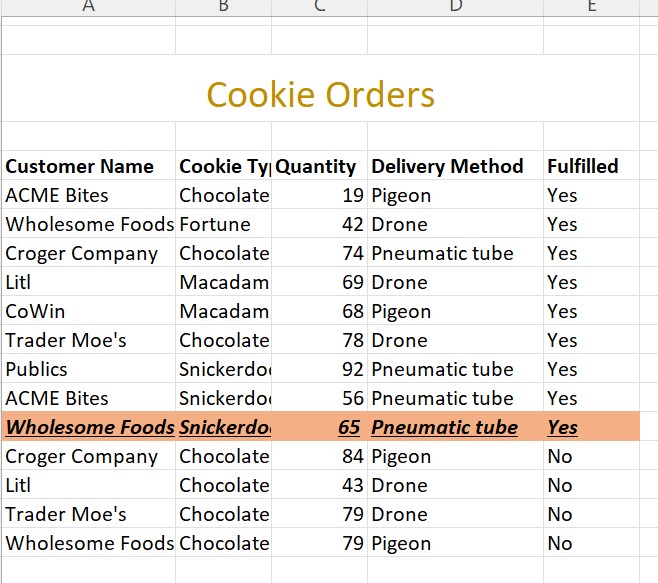
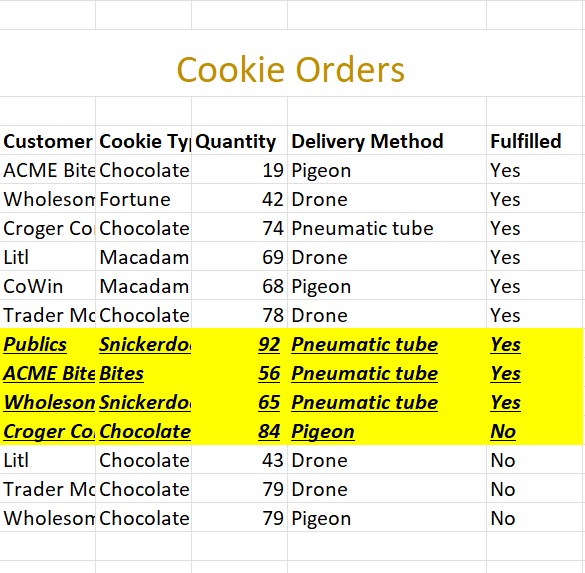
Formatting an order that is not fulfilled yet.
The format steps:
1)Highlight
2)Bold
3)Italics
4)Underlined
5)Fill a colour
3)How do you record a macro?
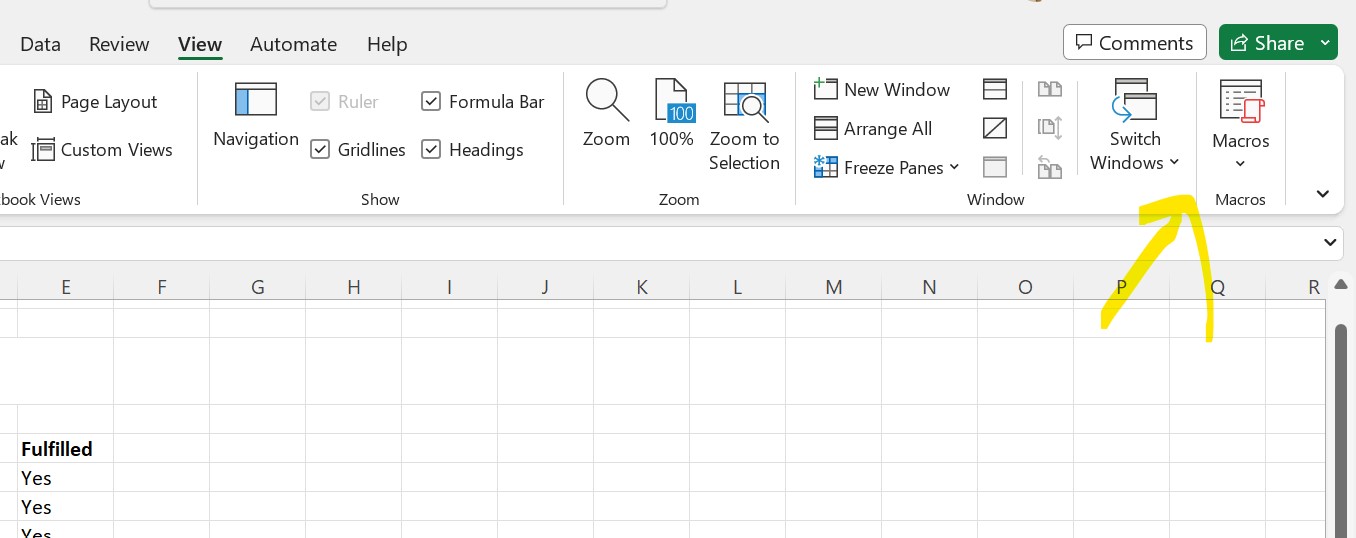
>Go to the View Ribbon.
>Select record macro.
>Give your macro a name(you cannot have any spaces for this)
>Define a shortcut key(Keep this as something that you don’t normally use.
>Give a description(This can come handy when you’re dealing with more than one macro)
>Press ok
(Perform your desired action)
>Select the row
>Bolden it
>Make it italic
>Underline it
>Fill color
>Stop recording the macro after this
4)How to run a macro?
>Method one:
First clear the formatting on the row.
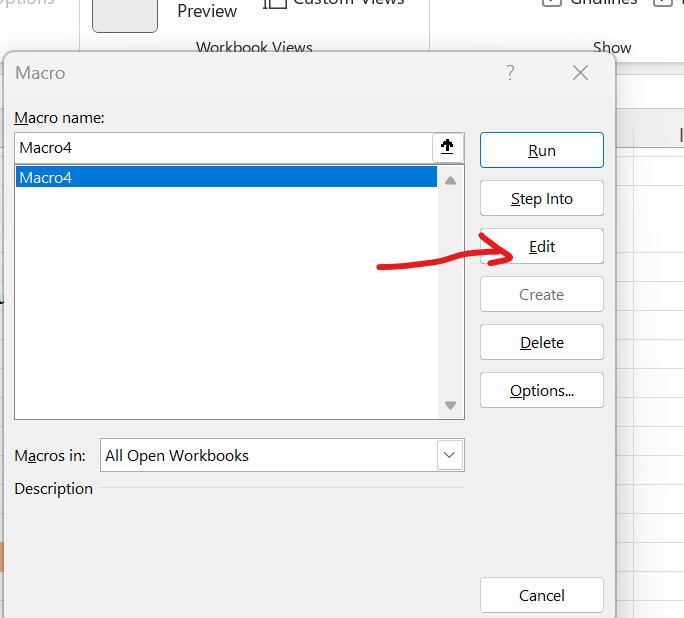
>After this go to view macros
>Double click your macro
>Or hit run
>Method two:
>First clear your macro.
>Hit the shortcut key that you defined.
>Method three:
>First clear your macro
>Now you can also assign your macro to an icon or an image
>Simply right click on it and assign a macro.
5)Absolute vs relative reference in macros
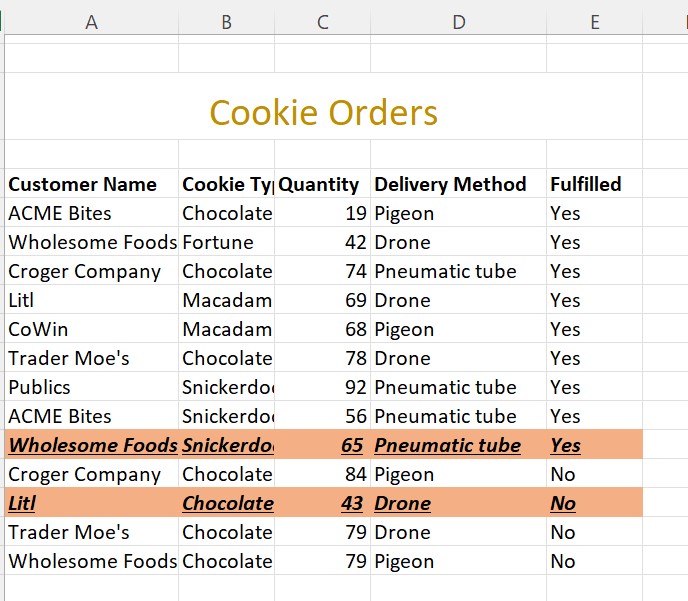
What we did so far was an absolute reference macro and what that means is that every time we ran the macro it ran the formatting on the same sheet.
>To use this on different rows you need to use a relative reference.
>To do this you need to first clear all the formatting.
>Delete your macro(this is optional)
>Select a cell
>Go to view and select use relative reference at the bottom
>Go to recording a macro and use the usual steps.
This time when you run your macro it’ll run for wherever you have your cell selected.
6)How to read the VBA?
Everything between the sub and the end sub is your code.
The part in green are the comments so they do not affect the code.
Most parts after this are simply the actions that you record.
For example,
Selecting Cells,making it bold,Italic and finally filling the color.
(NOTE: it says activecell.range(“A1:E1”).Select
This means that it is using a reference to your selected cell with the top most cell.
You can modify the code in VBA as well.
7)Created my first Macro with a real usecase.
Very often when we import datasets we need to split up the name into first name and last name.
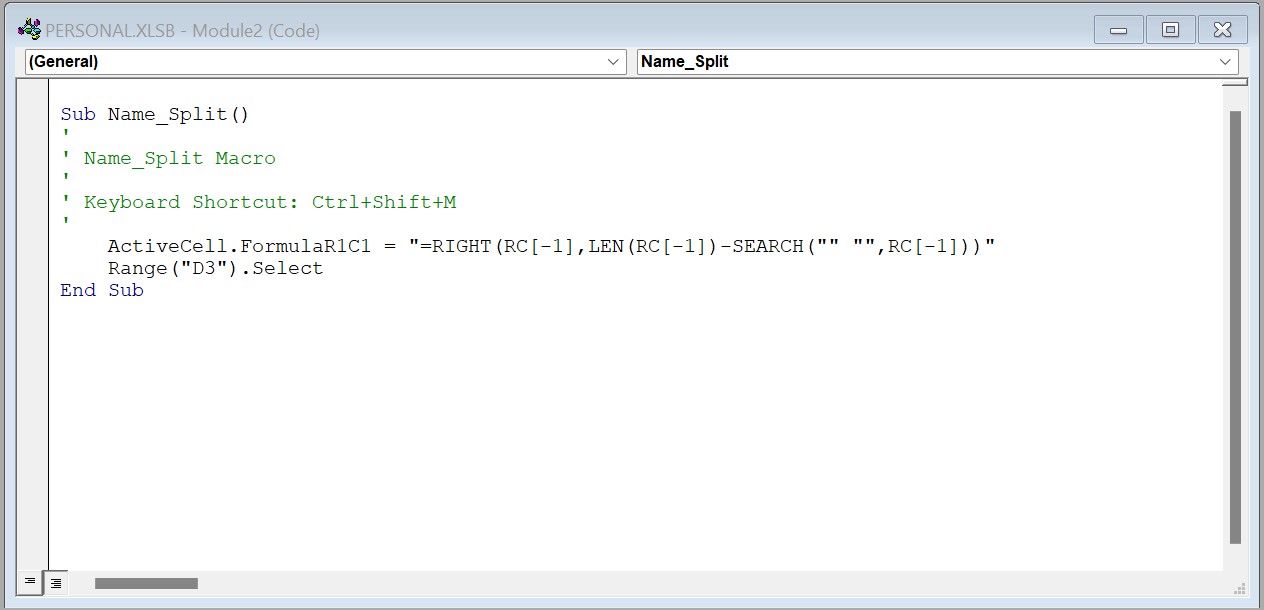
So here, I've created a macro that splits up the name and returns the surname.
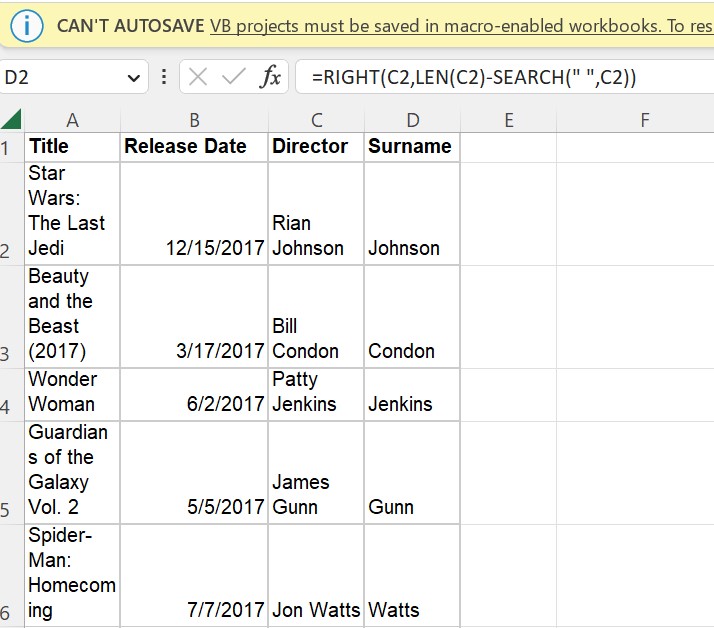
It gives out this result with the surname.
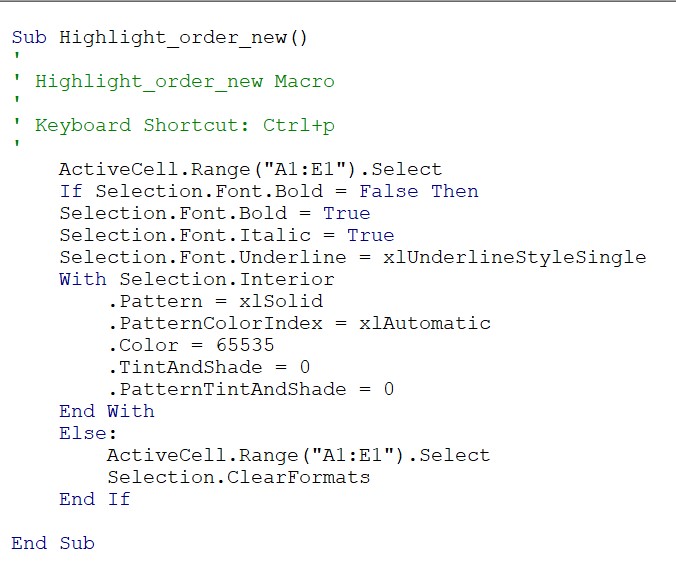
8)Creating a toggle-macro using IF-ELSE statement
Using this macro toggle, If the selected cell doesn’t have any formatting then it’ll add the formatting mentioned in the first if part. If there’s formatting then in that case it’ll execute the else part and all the formatting will be cleared out.
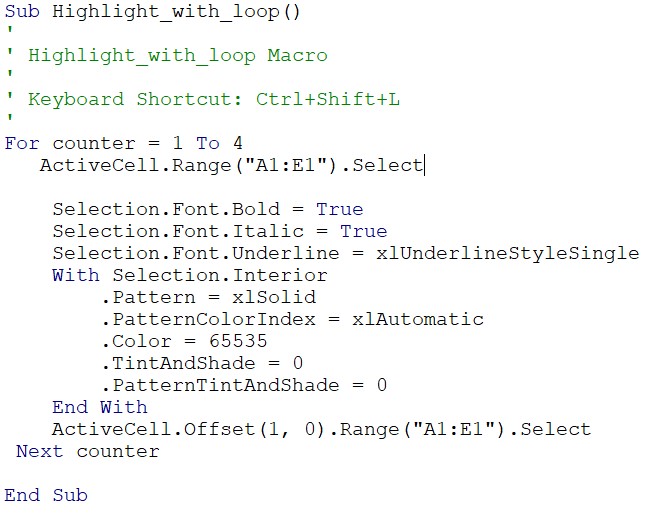
9)Creating a macro using for loop to perform the macro multiple times
Using a for loop we can perform a task multiple times.
In this example we have set the number to
4 so the task gets repeated over 4 rows.
Here's the VBA code for the same.
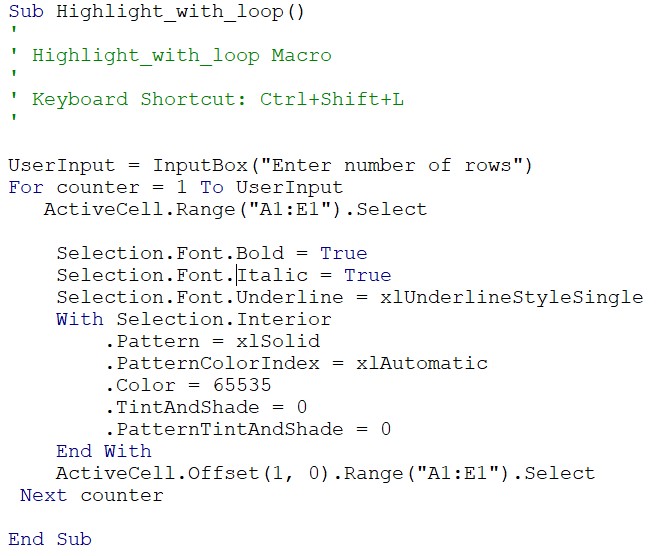
10)Creating a dynamic macro
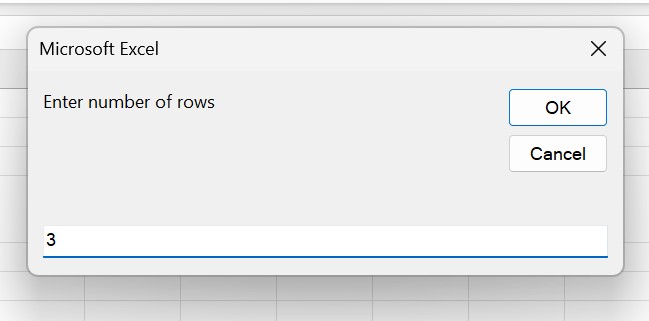
Using a user input to decide the number of times the macro has to be performed.
In this example we input
3 in the dilog box.
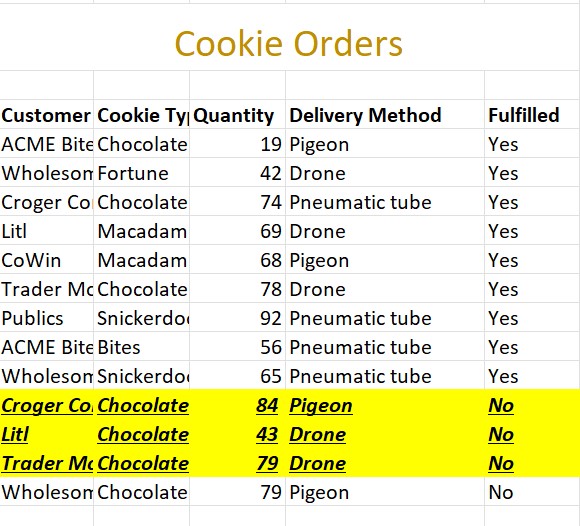
The macro executes on 3 rows.
Here's the VBA code for the same.
The final macro gets performed on 3 rows.
SOURCE: DATACAMP course on spreadsheets
Go to previous chapter